
JupyterHub Usage
A video guide to Using Jupyter (Classic) in the DSA Program is available here.
Logging In
Login to https://jupyterhub.dsa.missouri.edu with your university userid in lower case letters and your university password. Note that this is just the userid and NOT userid@umsytem.edu or your email address.

Spawning a Container
Your instructor will tell you which container to use for your course. For this example, we are choosing the Data Science – Core container. It is important to use the right container for your course, as the libraries you will need have been installed and tested in that container. After clicking the radio button for your container, Click the Spawn button at the bottom of the page.

The Jupyter Directory
After your server spins up, you will be viewing your Jupyter directory.
In the Classic Jupyter Notebook interface:

In the JupyterLab interface:

It should have a folder for your course. Our courses follow a naming convention, with the semester, dsa, the course number, underscore and your userid. For instance, for the fall of 2025 for the 7010 course you would see f25dsa7010_userid. Click on that to open the folder, then click on the Start_Here.ipynb Jupyter notebook.
The Start_Here notebook contains information about the overall course – be sure to read it. Then click on the link to Module 1 which will take you to the Module 1 Schedule.ipynb notebook. The Schedule notebook for each module leads you through the material in a systematic fashion. Always work from the course Schedule notebook to make sure you are working in order and not missing anything (or doing something not required that was accidentally deployed.)
Important! Do Not Rename Notebooks
Do not change the name of course notebooks. Changing the name of a notebook will un-link it from your the Module's Schedule.ipynb notebook, and complicate the work of the TAs and instructor in referring to your notebook to answer your questions and in grading.
Running Code in JupyterHub
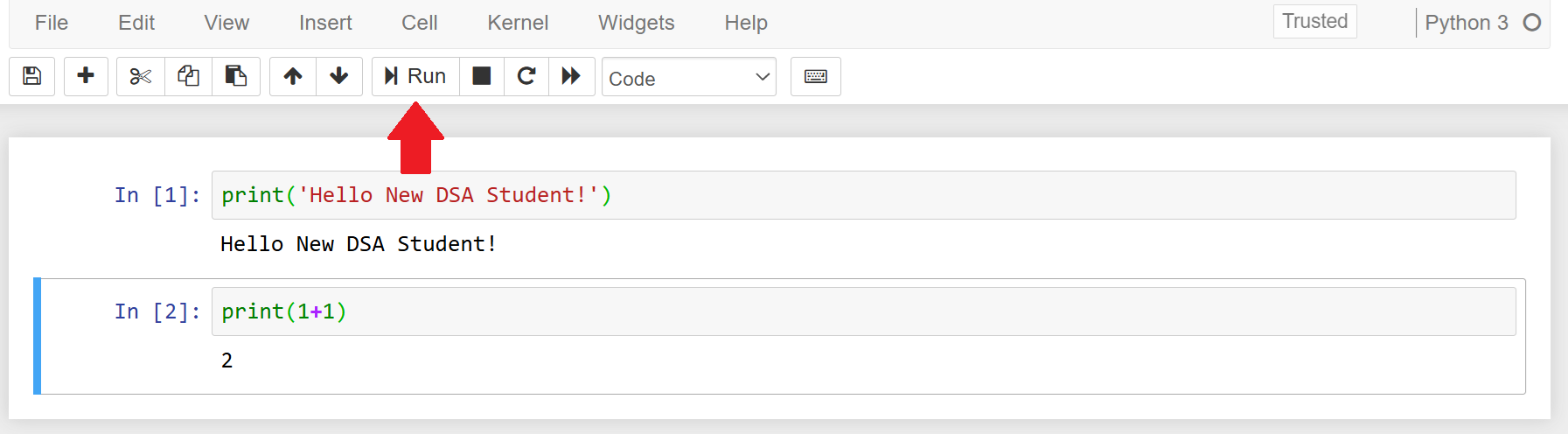
JupterHub allows interactive code execution by using 'cells'. These cells can contain code snippets or text to be executed when selected. The active cell is bordered, as shown below.

You can use the Run button in the icon bar or press [SHIFT]+[ENTER] to run the highlighted cell. In JupyterLab, the icon is a right arrowhead.

Important! - Closing and Halting Notebooks
Notebooks and code cells access the underlying computing resources of the servers hosting them (such as memory). Hence, properly closing and halting notebooks is a good way to avoid slowing down the system and prevent crashes that could make you lose your work.
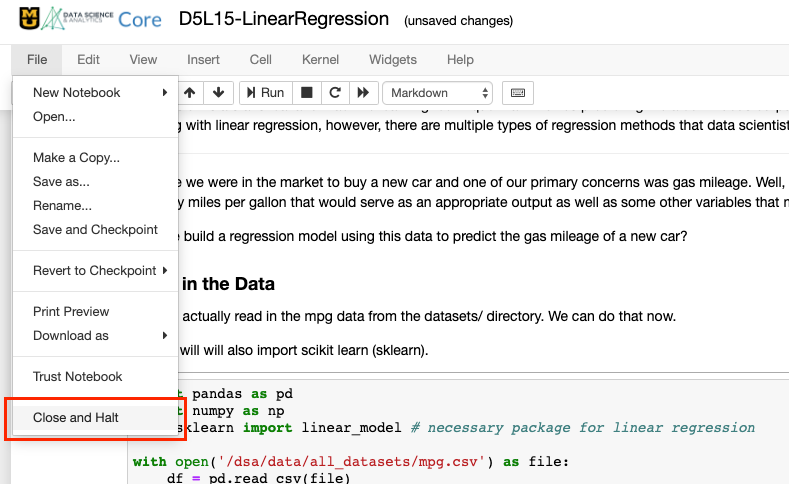
Closing and Halting Notebooks in the Classic Jupyter Notebook interface.
In order to properly close and halt a notebook in the Classic Jupyter Notebook interface, you can click on File > Close and Halt, as shown below.
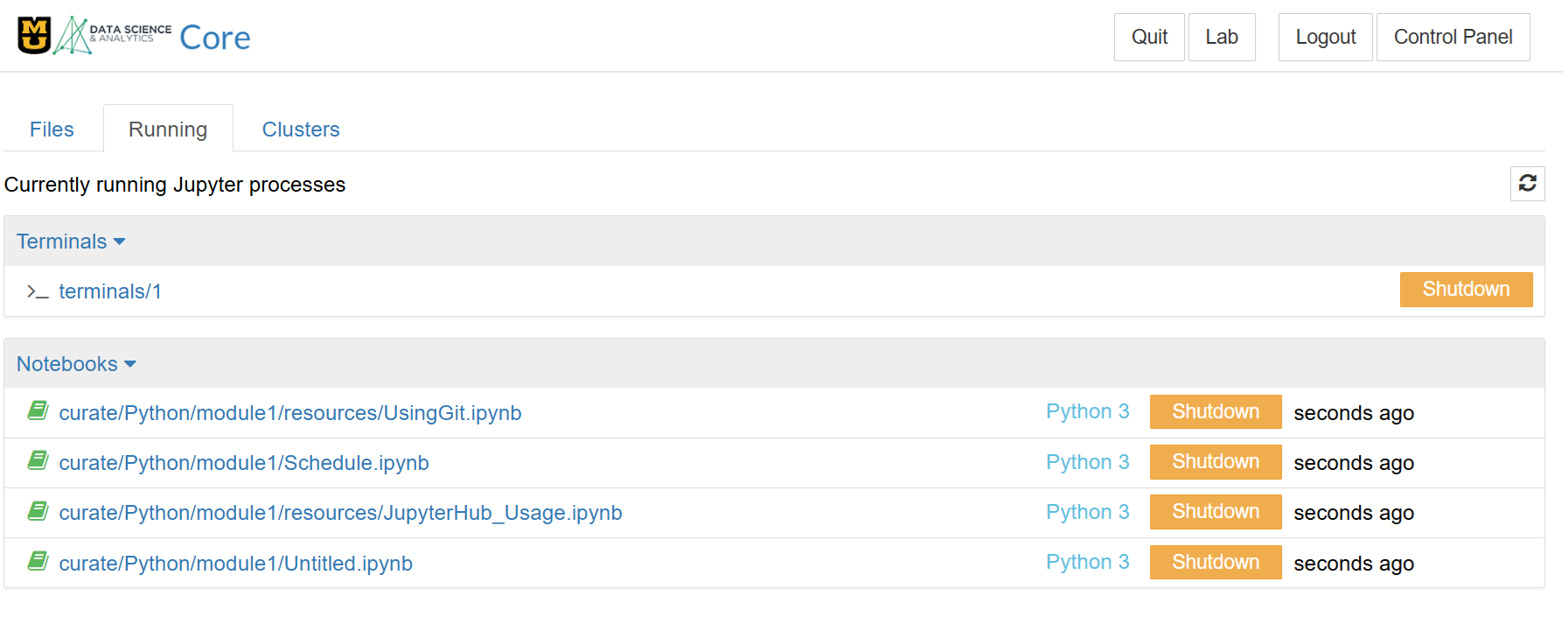
Alternatively, you can click on the Running tab from the initial directory view to see all your running notebooks (and terminals) in a list similar to the one shown below. Even though they might not be opened in a browser tab, notebooks can still be running in the background. Clicking on Shutdown will halt a notebook in the list.
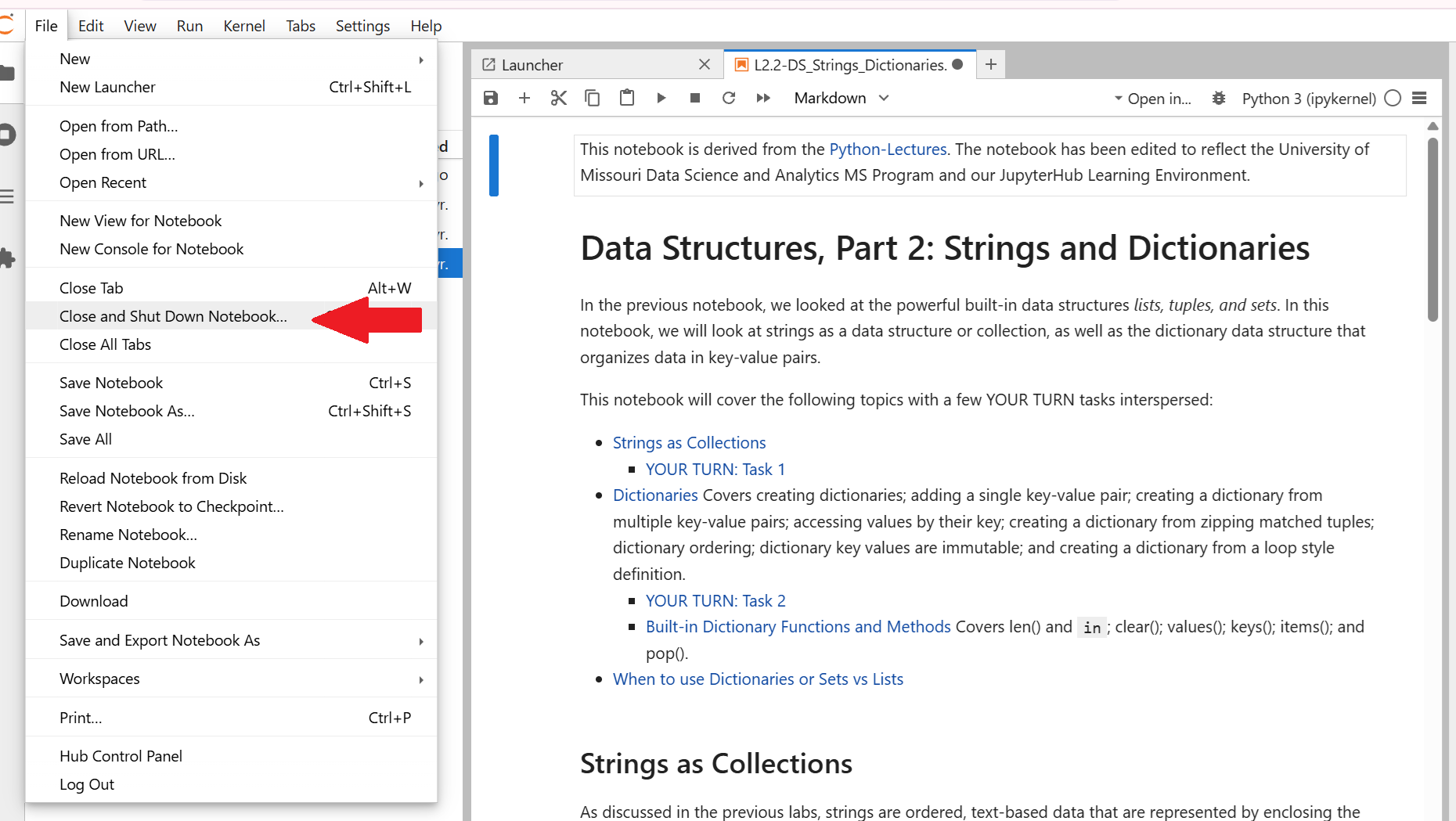
Closing and Halting Notebooks in the JupyterLab interface.
In JupyterLab, go to File > Close and Shut Down Notebook to remove your notebook from memory.
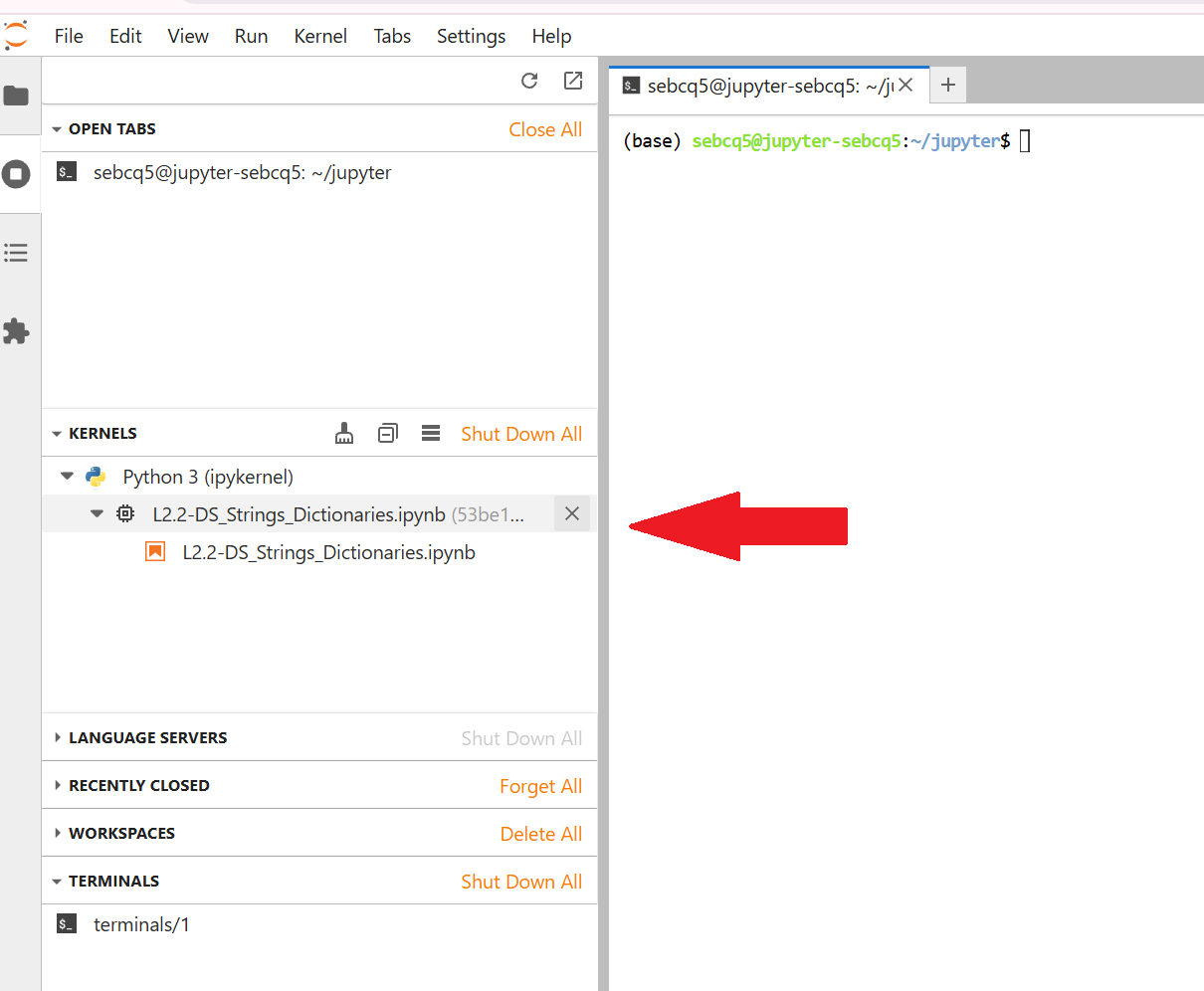
In JupyterLab, you can view notebooks and terminals in memory by going to View > Sessions and Tabs.
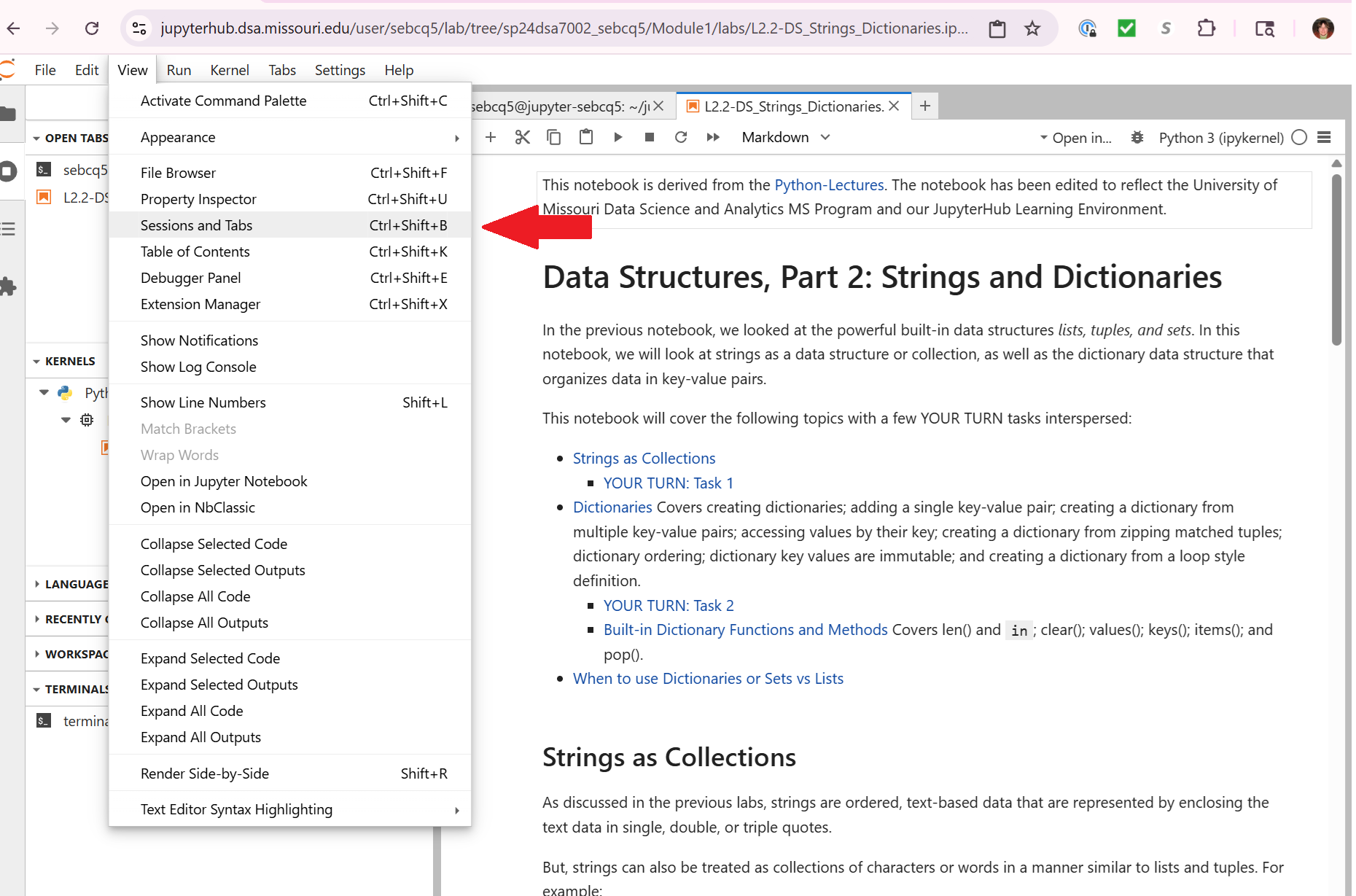
You can shut down an individual notebook kernel or terminal by hovering over its name and clicking the X. Note that in the below screen shot, The L2.2 notebook is not in an open tab, but it is a running kernel and should be shut down.
Busy Kernels
Running large tasks or loading large datasets can sometimes take time, keeping your Python or R kernel busy. The circle in the upper corner (kernel indicator), will show whether the kernel is idle or busy like in this Classic Jupyter Notebook screenshot (JupyterLab is similar, but slightly different.)

At times you might run into a kernel that stays busy for longer than necessary (again, this depends on the task), which could be a sign of a problem in your code. If you get stuck with a busy kernel, you can interrupt it without shutting down your notebook by selecting Kernel > Interrupt or by pressing 'I' twice.
Save and Checkpoint
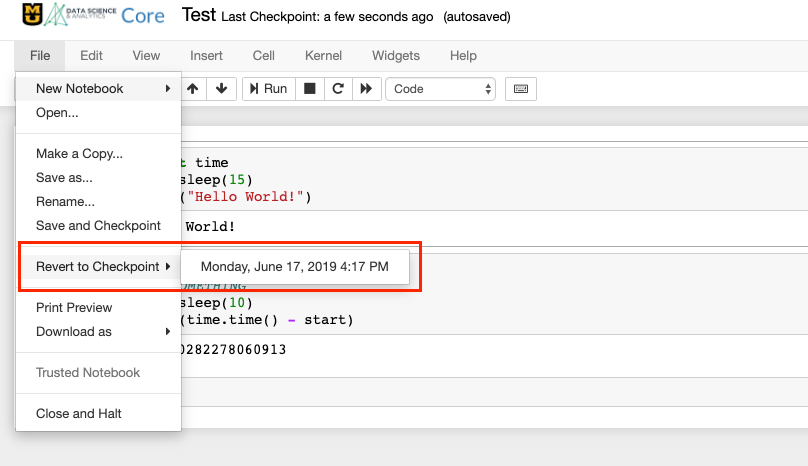
Since crashes or busy kernels can happen when dealing with large data, it is important to keep your work up-to-date by constantly saving your notebooks. Selecting File > Save and Checkpoint in Classic Jupyter Notebook or File > Save Notebook in JupyterLab will save your most recent work and create a checkpoint that you can revert to if needed. You can go back to the last previously saved checkpoint by selecting it from File > Revert to Checkpoint in Classic Jupyter Notebook or File > Revert Notebook to Checkpoint in JupyterLab. Your checkpoints will be listed with the date and time of your last update either like the screenshot below or in a pop-up window in JupyterLab.
Opening a Terminal for Git commands
Graded assignments will need to be uploaded (i.e.: 'pushed up' in git lingo) using git from a Jupyter terminal.
In Classic Jupyter Notebooke, selecting New > Terminal from the initial file view, like the screenshot below, will launch a new terminal where you can submit your work through git. We will look at how to submit your work through git in more detail in another post.

In JupyterLab, just click on the Terminal icon on the Launcher tab.

To close a terminal and remove it from memory, enter exit. If you close a terminal's tab without exiting, just like with notebooks, all of your currently running terminals will be listed under the Running tab in Classic Jupyter Notebook or under View > Sessions and Tabs in JupyterLab, and can be shutdown from there.
Shutting Down Your Server
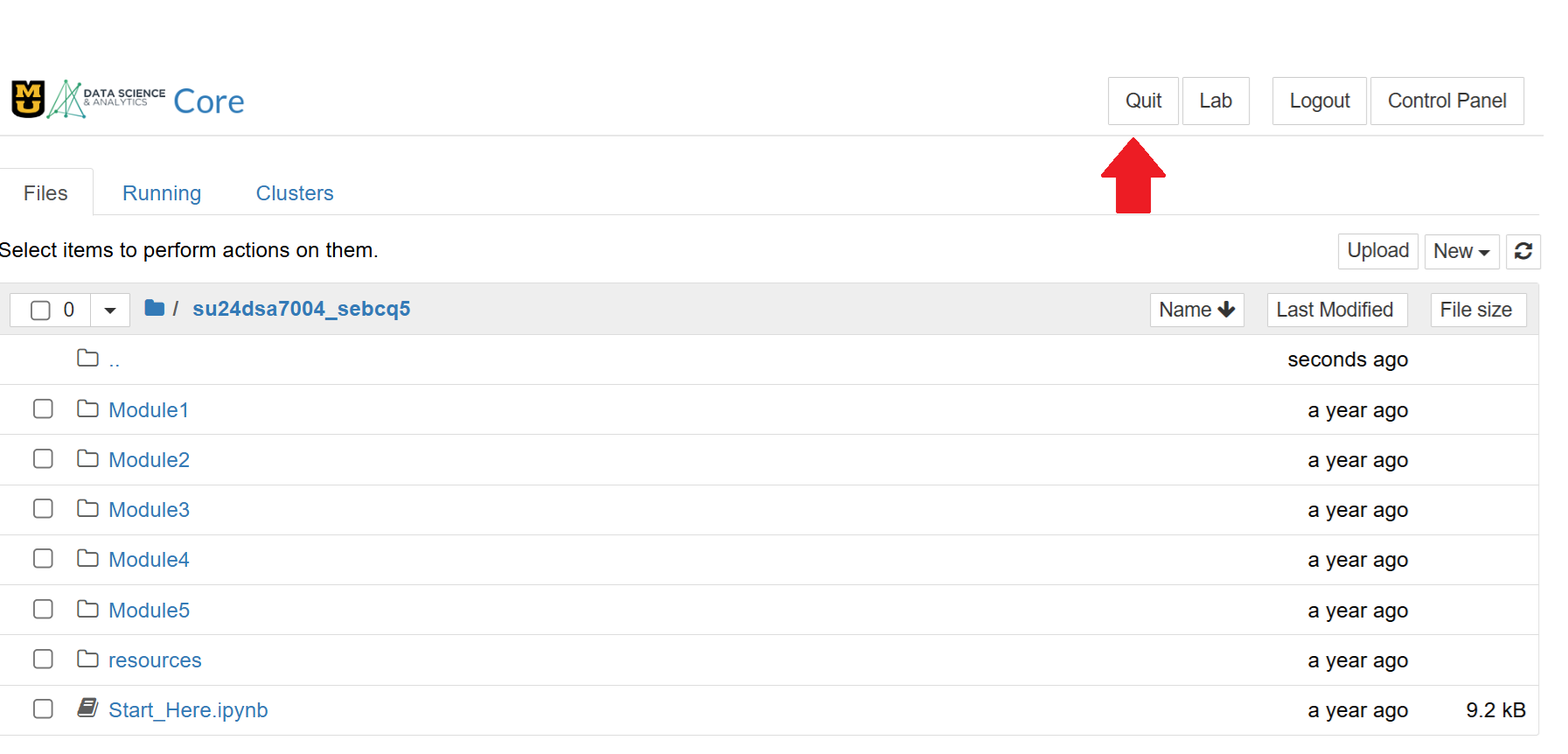
Simply logging out leaves your server running. To shut down your server in Classic Jupyter Notebook, use the Quit button in the upper right of your Jupyter directory page.
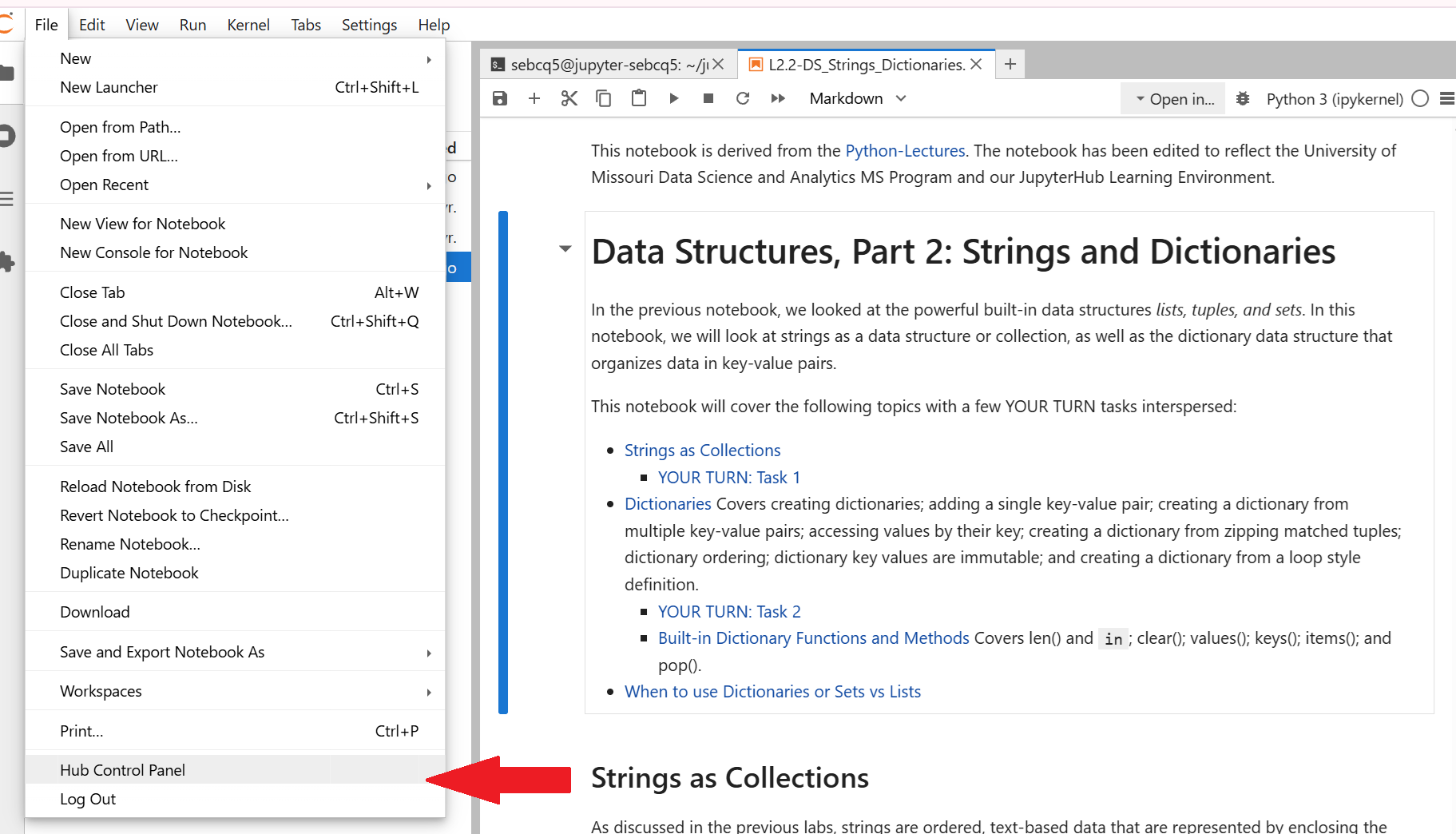
In JupyterLab, go to File > Hub Control Panel, then click the Stop My Server red button

To open your server with a different container, close the tab, open a new one, and go to https://jupyterhub.dsa.missouri.edu again to re-launch your server.
Take the time to take a tour of JupyterHub
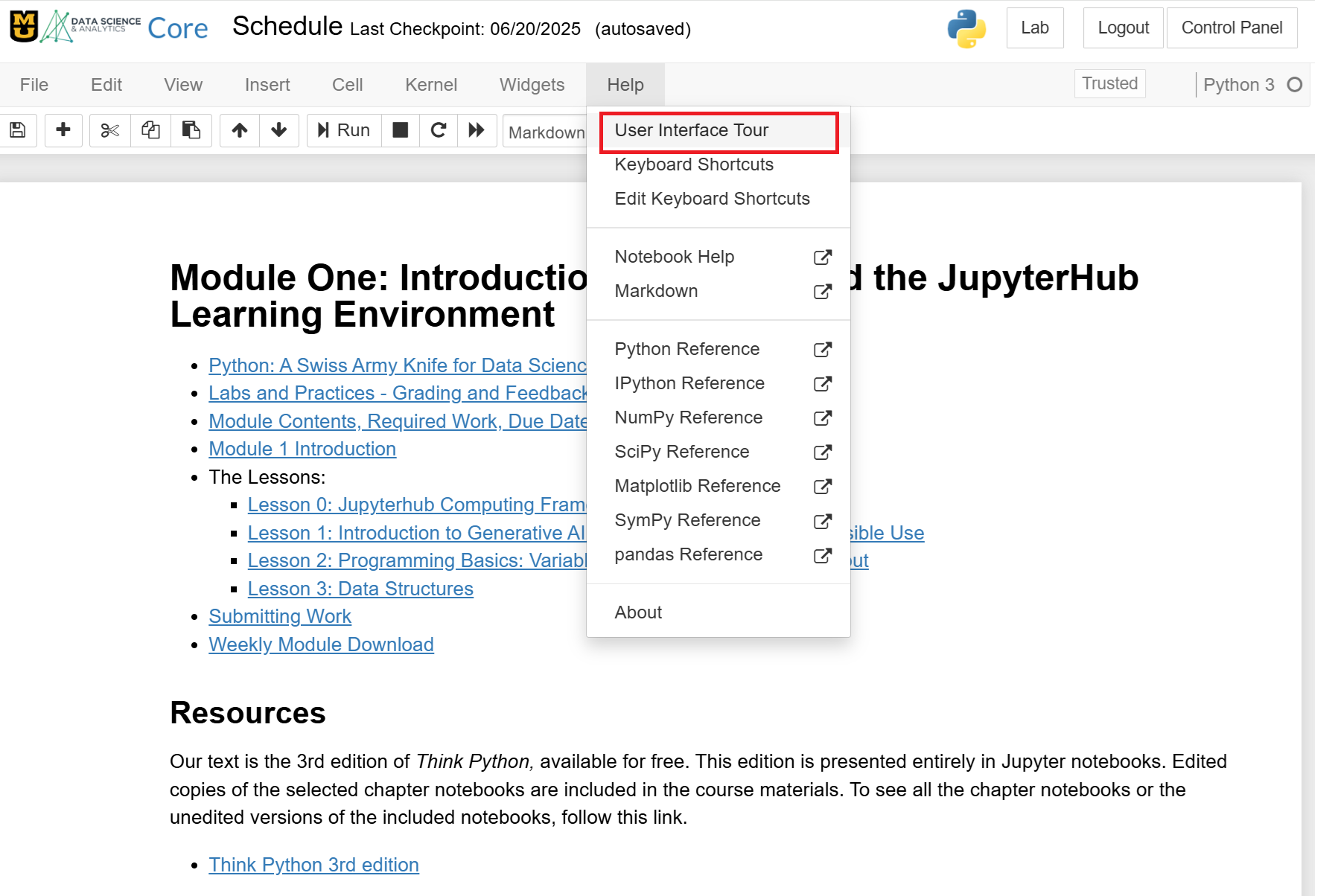
From the Help menu in Classic Jupyter Notebook, select User Interface Tour. (I can't find this same content in JupyterLab.)
Keyboard Shortcuts are available as well
From the Help menu, select Keyboard Shortcuts in either Classic Jupyter Notebook or JupyterLab.

Need more information or help? Reach out to us at 📧 jcwdw@missouri.edu