
Git - Restoring a notebook
If you accidentally delete a notebook or want to start over, this is easily accomplished.
Solution 1: Restore a missing notebook from a checkpoint file
Open a terminal and change into the course folder, then change into the folder the deleted notebook was in. List the files in the hidden .ipynb_checkpoints folder with the ls command, using the -a flag to list hidden files, and the -l flag to list long-form details (including the file size.) Hidden folders and files start with a period.
# first change into the course directory and then the folder the file is in

# for instance
cd su25dsa7004*
cd module1/labs

# then list the files in the hidden .ipynb_checkpoints folder
ls -la .ipynb_checkpoints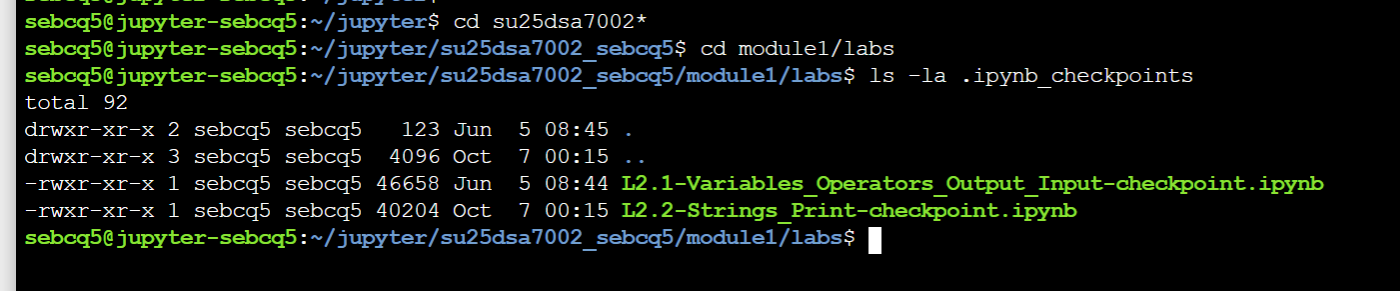
If you see a file listed <notebook_name>-checkpoint.ipynb, you can restore this file using the cp (copy) command. If you don't see a checkpoint file for the missing notebook, move on to Solution 2.
cp .ipynb_checkpoints/<notebook_name>-checkpoint.ipynb ./<notebook_name>.ipynb

# for instance, to restore L2.2 as shown in the screenshot
cp .ipynb_checkpoints/L2.2-String_Print-checkpoint.ipynb ./L2.2-String_Print.ipynb
Open the file. You may have lost some work, but it should be better than starting over.
Solution 2: Restore to the last commit
To start over with this notebook, or to restore a notebook that does not have a checkpoint file, you can always restore a file to how it looked at a previous commit. These instructions are for restoring to the last commit, which is probably from when it was deployed to you. To restore to an earlier commit, we recommend getting help from the sysadmin.
You will use git checkout <path_to_file> to restore the file. Make sure you put the path to the file! If you use git checkout without the file path, everything in your repository will be reverted to the last commit - you will lose any uncommitted work.
Run git status from inside the course repository. If you are still in the folder the file is in, the path will be different than if you are in the course root, but the commands will all work the same. Running git status lets you get the path correct.
git status
git checkout <path_to_file>

# for example:
git checkout L2.2-Strings_Print.ipynb

# or if I am in the course repo root directory
git checkout module1/labs/L2.2-Strings_Print.ipynb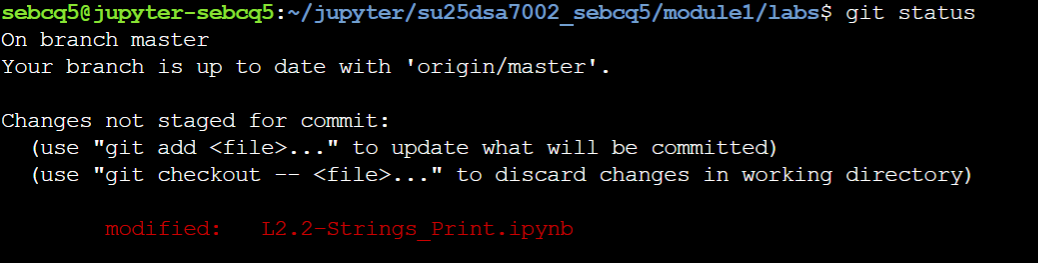
Need more information or help? Reach out to us at 📧 jcwdw@missouri.edu